What is YTD Toolbar?
By YTD
What is it?
YTD Toolbar is a Spigot toolbar in your Web browser that collects and stores information about your web browsing habits and sends this information to Spigot so they can suggest services or provide ads via the toolbar.
Why should I uninstall YTD Toolbar?
Removing unwanted toolbars and other browser extensions is generally a good idea as they have the potential to cause web browser stability issues contributing to a slower PC performance. YTD Toolbar can monitor your search queries and browsing habits in order to send you targeted ads and modify your search settings and results.
Typical installation path: C:\Program Files\YTD Toolbar
Description from YTD“There are many video downloaders out there but few as good as YTD Video Downloader. YTD Video Downloader is simply an excellent tool for saving your favorite video clips from YouTube and other video websites. When you install YTD Video Downloader it will try to install a toolbar but you can reject this by hitting the decline button. After that, installation is very quick and it automatically opens YTD Video Downloader. The interface is self explanatory. As soon as you copy a YouTube or video link to your clipboard, it automatically detects this and places it in the URL field. Just click the big red "Download" button at the bottom and YTD Video Downloader instantly starts downloading.”
Publisher about URL: http://ytd.ourtoolbar.com/
YTD Toolbar technical details
Name:                   YTD Toolbar
Publisher:              Spigot, Inc.
Type:                   Toolbar
Class ID:               {F3FEE66E-E034-436A-86E4-9690573BEE8A}
File:                   ytdToolbarIE.dll
Folder:                 C:\Program Files\YTD Toolbar\IE\6.5

Name:                   YTD Toolbar
Publisher:              Spigot, Inc.
Type:                   Browser Helper Object
Class ID:               {F3FEE66E-E034-436A-86E4-9690573BEE8A}
File:                   ytdToolbarIE.dll
Folder:                 C:\Program Files\YTD Toolbar\IE\6.5
YTD policies
The following can be found in YTD's privacy policies and terms of service:
“By installing the Toolbar on your computer, you expressly authorize and request Spigot to:
a) act as your search agent to conduct inquiries on your”
How to Automatically Uninstall YTD Toolbar (with Boost)
If you you do not have Boost installed yet, download Boost and enjoy your PC.
Open Boost by either double-clicking the Boost icon 

 in your notification area next to your PC's clock, or single-clicking the Boost icon and clicking the Open Boost button on the top left of the Boost notification window.
 If you are not currently on the My PC screen of the main Boost window, click the My PC tab.
Click the Optimize programs button  , this will launch the Program Optimization screen.
Locate the program in the list called YTD Toolbar by YTD. (The program could be listed under any of the section such as Uninstall Recommended, Possible Uninstall, etc. based on how well YTD Toolbar performs on your PC.)
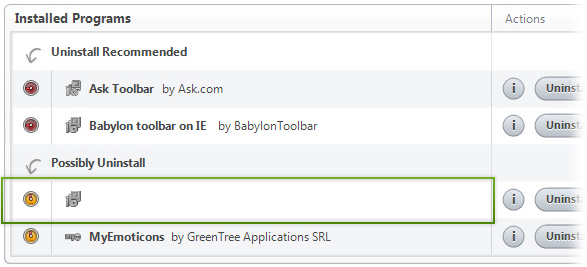
YTD Toolbar by YTD
To the right of the list item, click the Uninstall  button and Boost will completely remove YTD Toolbar from your PC.
How to Manually Uninstall YTD Toolbar (with Windows)
Use Add/Remove Programs control panel in Windows makes to uninstall YTD Toolbar. Follow the appropriate instructions below to use this control panel.
Windows 7
From the Start menu, select Control Panel.
In Large or Small icon view, click Programs and Features. If you're using Category view, under "Programs", click Uninstall a program.
Select YTD Toolbar from the list of programs, and click Uninstall. Alternatively, right-click the program and select Uninstall.
Windows Vista
From the Start menu, select Control Panel.
In Classic View, double-click Programs and Features. In Control Panel Home view, under "Programs", click Uninstall a program.
Select YTD Toolbar from the program list, and click Uninstall. Alternatively, right-click the program and select Uninstall.
Windows XP
From the Start menu, select Control Panel.
Click the Add or Remove Programs icon.
Select YTD Toolbar from the list of programs and click Remove.